1. Enable notifications
- In Muxly Settings, turn on Bell Notifications. Allow notifications when iOS asks.
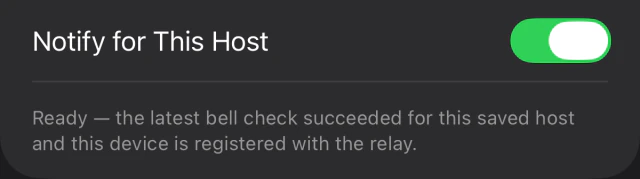
- Edit your saved host, turn on Notify for This Host, and save.
- Connect and open the tmux session you want to use.

2. Send a test notification
Run this in a tmux shell on the host, then lock your phone before the ten seconds are up. Tap + for a fresh shell window if you need one.
sleep 10; printf '\a'printf '\a' prints the bell character. tmux notices it, and the hook Muxly installed sends the notification.
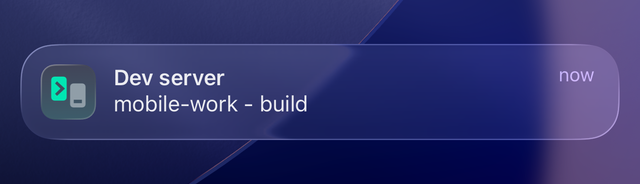
If nothing arrives, fix that first: see The test notification doesn’t arrive.
3. Choose what notifies you
Run the tool inside the tmux session you opened from Muxly, then set it up below.
| Tool | Rings when | Delay |
|---|---|---|
| Claude Code | it asks for permission; it has finished and you haven’t typed | about 6 s; about 60 s (instant with the optional hook) |
| Codex CLI | a turn completes; it asks for approval | immediate |
| Any command | the command exits | immediate |
Claude Code: approval requests and finished tasks
In Claude Code on the host, run:
/config notifChannel=terminal_bellClaude confirms with “Set Local notifications to terminal_bell” and then rings the bell about six seconds after it asks for permission, and about a minute after it finishes if you haven’t typed since. On Claude Code older than 2.1.182, run /config, search for notifications, and choose Terminal bell.
Test it: ask for a one-line answer, lock the phone, and wait about a minute.
Optional: get the alert the moment Claude finishes
Add a Stop hook to ~/.claude/settings.json on the host. Claude Code sends the bell itself when it finishes, so it works inside tmux. Keep the setting above for permission prompts.
{
  "hooks": {
    "Stop": [
      {
        "hooks": [
          { "type": "command", "command": "printf '%s' '{\"terminalSequence\":\"\\u0007\"}'" }
        ]
      }
    ]
  }
}
If the file already has a hooks section, add the Stop entry inside it. Restart Claude Code. The usual finished alert still follows a minute later and replaces the first one. Tested on Claude Code 2.1.273.
Notification setting · When alerts fire · Terminal notifications from hooks
Codex CLI: finished turns and approval requests
On the host, add these lines to ~/.codex/config.toml:
[tui]
notifications = ["agent-turn-complete", "approval-requested"]
notification_method = "bel"
notification_condition = "always"
bel makes Codex ring the plain terminal bell instead of a desktop-notification sequence that tmux may drop, and always stops it from waiting for terminal focus, which tmux doesn’t report unless you’ve turned on focus-events. If [tui] already exists, add the lines to that section. Restart Codex, give it a short task, and lock the phone.
Builds and scripts: when a command finishes
Ring the bell after any command, whether it succeeds or fails:
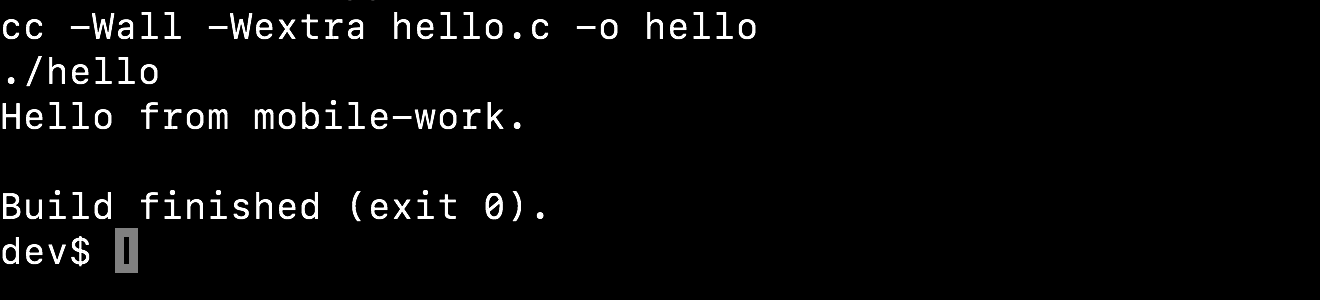
make; printf '\a'Replace make with your command. Open the window to see the result.
Optional: a reusable bell command
Add this to ~/.bashrc or ~/.zshrc on the host, then run bell npm test or bell cargo build. It keeps the command’s exit status.
bell() { "$@"; s=$?; printf '\a'; return $s; }4. Open the notification
Tap it. If Muxly is connected, it opens that session and window. If not, it opens your host list and marks the host with a Bell badge; connect and pick the session. In a window with several panes, choose the pane running your task.
Common questions
Will notifications arrive after I disconnect or close Muxly?
Yes. The host sends them, so they don’t depend on the app or the SSH connection. The host and its tmux session must keep running, and the host needs internet access. Delivery is best effort: a notification can be delayed or dropped.
Does this work over plain SSH, without tmux?
No. Notifications rely on a hook Muxly installs in tmux on the host, so the host needs tmux Integration on, and only sessions you’ve opened from Muxly can ring.
Will I get a notification for the window I’m looking at?
No. Muxly stays quiet for the window you’re viewing, and bells from the same window replace each other, so you get one notification per window.
Can two devices get the same notifications?
Yes. Turn on iCloud Keychain on both devices so they share the delivery identity, then set up notifications on each device as above.
Is the notification content private?
Yes. The host encrypts the session and window names for your device; the relay only routes the message and never sees them. The hook lives in tmux’s memory and writes nothing to the host’s disk. Privacy policy.
What should I do after restarting the host or tmux?
Reconnect through Muxly and open a tmux session before starting work that should notify you. Reattaching reinstalls the hook.
Troubleshooting
The test notification doesn’t arrive
- Open iPhone Settings → Notifications → Muxly and enable Allow Notifications. Check that Focus allows Muxly.
- Check that Bell Notifications in Muxly Settings and Notify for This Host in the host settings are both on.
- Lock your iPhone and repeat the test. Muxly suppresses alerts for the window you are viewing.
If the test still fails, check the host’s notification status:
- Go Back to Hosts and edit the host. Choose Disconnect and Edit if asked.
- Read the status below Notify for This Host and follow its instructions. See the server requirements and tmux bell settings for more detail.
- Once it shows Ready, save, reconnect, open the session, and repeat the test notification.
The test works, but my tool doesn’t notify me
- Claude Code: run
/configand check that Local notifications shows Terminal bell. Allow about a minute after a response, and don’t type meanwhile. - Codex: check all three lines under
[tui], especiallynotification_condition = "always", then restart Codex. Update Codex if it’s older than 0.147. - Build: the command has to exit. Watch mode never does, so the bell never runs.
If alerts stopped after a restart, reconnect through Muxly and open a session again.