1. Connect to your host
- In Hosts, tap +. Enter a label, hostname, port (usually 22), and username.
- Choose Password and enter it, or SSH Key and pick a key. See SSH key setup if you need one.
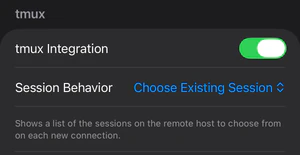
- Turn on tmux Integration. Under Session Behavior, choose Choose Existing Session so you can pick a session each time you connect.
- Tap Save, then tap the host. The first time, accept the host’s key fingerprint when Muxly shows it.
2. Open a tmux session
Tap a session to attach. It’s the same session you’d get from tmux attach on your laptop, and both can stay attached at once.
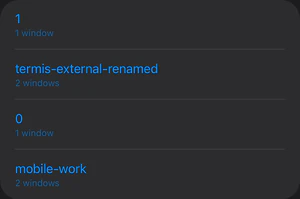
No sessions yet? Tap Create Named Session…, enter a name such as mobile-work, and tap Create.
Create another session while connected: open ⋯ More → Switch Session and tap +. Choose New Session, or choose New Named Session…, enter a name, and tap Create. See the session reference for details.
3. Switch windows and panes
A Muxly tab is a tmux window. A window can hold several panes.
| To… | Do this |
|---|---|
| Switch windows | Tap a tab. |
| Create a window | Tap + in the terminal tab strip. |
| Switch panes on iPhone | Tap the active tab to open the pane picker, then tap a pane. |
| Focus a pane on iPad | At full width, tap the pane. |
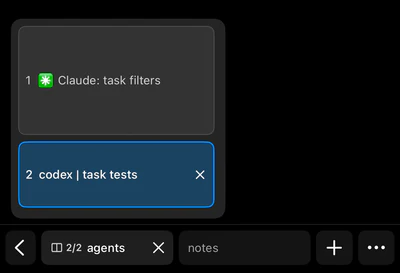
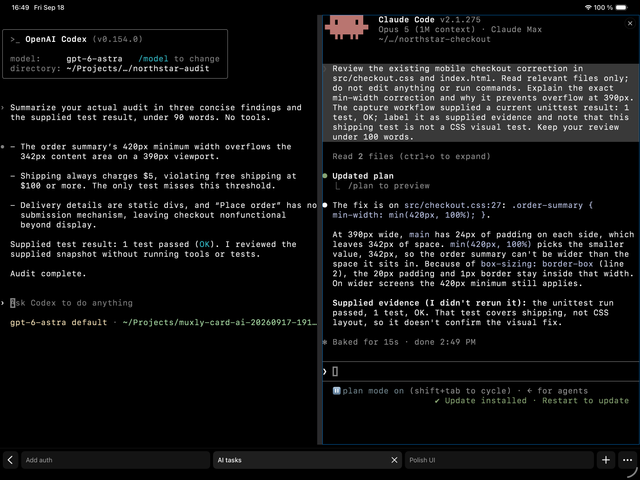
Closing a tab closes that tmux window and every pane in it. To step away, tap Back or leave the app. Nothing closes.
See the reference for renaming and reordering tabs, splitting panes, and prefix shortcuts.
4. Leave and return
Lock your device or switch apps. Everything keeps running as long as the host is awake and tmux is running. To come back, open Muxly, tap the host, reconnect if asked, and pick the same session.
Try it: leave while a command runs
- Tap + for a spare window and run:
sleep 10; echo 'Task finished' - Before ten seconds pass, open the app switcher and swipe Muxly away.
- Wait ten seconds, reopen Muxly, connect to the same host, and open the same session and window. You’ll see
Task finished.

Common questions
Does tmux run on the iPhone?
No. tmux runs on your host, and Muxly is the client. Nothing else is installed on the phone.
How is this different from a plain SSH app?
In a plain SSH app you drive tmux with prefix keys and read its text status bar. Muxly attaches in tmux control mode, so windows become tabs, panes become a picker or a layout, and everything stays in sync with the tmux client on your laptop. Common prefix shortcuts still work.
Can I run Claude Code or Codex this way?
Yes. They’re ordinary programs in tmux windows on the host, so you see them like any other window: side by side on iPad, one at a time on iPhone. To be told when one needs approval or has finished, set up notifications for Claude Code and Codex.
Can my laptop and phone use the same session at once?
Yes. tmux sizes a shared window to whichever client used it most recently, so your laptop’s view may reflow to the phone’s size while you work on the phone, and back when you return to the laptop.
What happens if my host sleeps?
Tasks pause until it wakes. Keep the host awake while work should continue.
What happens if my host shuts down or restarts?
Running programs end. tmux doesn’t restore them after a restart.
Do I need to change my tmux configuration?
No. Muxly reads your prefix key and works with your existing configuration. It never edits tmux.conf; while attached it sets a few window options, such as window-size latest.
Troubleshooting
I can’t connect
Check the host address, port, network or VPN, and SSH credentials.
My session is missing
Check that you’re using the same host and SSH username, and that the session is still running.
Tabs open separate shells
Turn on tmux Integration in the host settings, then reconnect.
My iPad shows only one pane
Muxly picks the pane layout from the window width when it connects. Make Muxly full width, disconnect, and connect again.